Get started
What you need
- A LEGO® SPIKE Prime hub with a charged battery.
- Its USB cable (micro-USB), only to put Pybricks on the hub.
- A computer with Chrome or Edge: Windows, macOS, ChromeOS or Android. Firefox, Safari, iPads and iPhones cannot use Bluetooth from a web page, so they cannot connect to a hub.
Put Pybricks on your hub
MatPilot talks to hubs that run Pybricks, free firmware made by the Pybricks team. You put it on the hub once, with a USB cable; after that MatPilot connects over Bluetooth. Pybricks’ own installer does the work:
- Open the installer. On a computer with Chrome or Edge, go to code.pybricks.com, open its tools menu and choose Install Pybricks Firmware. It asks a few questions first: the hub (SPIKE Prime), the licences, and a name for the hub.
- Get the hub ready. Turn the hub off and unplug its USB cable.
- Hold the Bluetooth button on the hub, and keep holding it.
- Plug in the USB cable (micro-USB) between the hub and the computer.
- Wait for the light. When the Bluetooth light blinks pink, green, blue, let go of the button.
- Choose the hub. In the browser’s pop-up, choose “LEGO Technic Large Hub in DFU Mode” and press Connect. Wait until the installer says it is done.
Open the Pybricks installerPybricks’ guide, with a video
- Linux needs a setting first (Pybricks on Linux); on Windows the installer may ask you to install a USB driver.
- Want the LEGO® app back? The same tools menu has Restore official LEGO firmware, and it works the same way.
- MatPilot is tested with Pybricks v4.1.3. When you connect, it shows the version your hub has, and says so when it is another one.
Connect to your hub
- Turn the hub on with its centre button.
- Open the Blocks page and press Connect hub (top right).
- The browser lists the hubs near you that run Pybricks. Choose yours and press Pair or Connect.
- The button now shows your hub’s name, and the bar above the blocks shows what is plugged into each port.
- Connect hub: press it, then choose your hub.
- What is plugged into each port, once the hub is connected.
- Run starts your program on the hub.
Or connect with a USB cable
With Pybricks v4.1.1 or newer on the hub, a USB cable works too: no pairing, and nothing else nearby gets in the way. Plug the hub in, turn it on, and press USB beside Connect hub. The browser lists the hub; choose it.
- Older Pybricks, such as v4.0.1, and the LEGO® app’s firmware only charge over USB. Update with the steps above: Pybricks’ installer puts the newest Pybricks on the hub.
- The USB button appears only in browsers that can use it: Chrome and Edge on a computer, and newer Chrome on Android.
- On Linux, your user must be allowed to use serial ports (the dialout group).
- Pulling the cable out does not stop a program: press the hub’s centre button to stop it.
Your first program
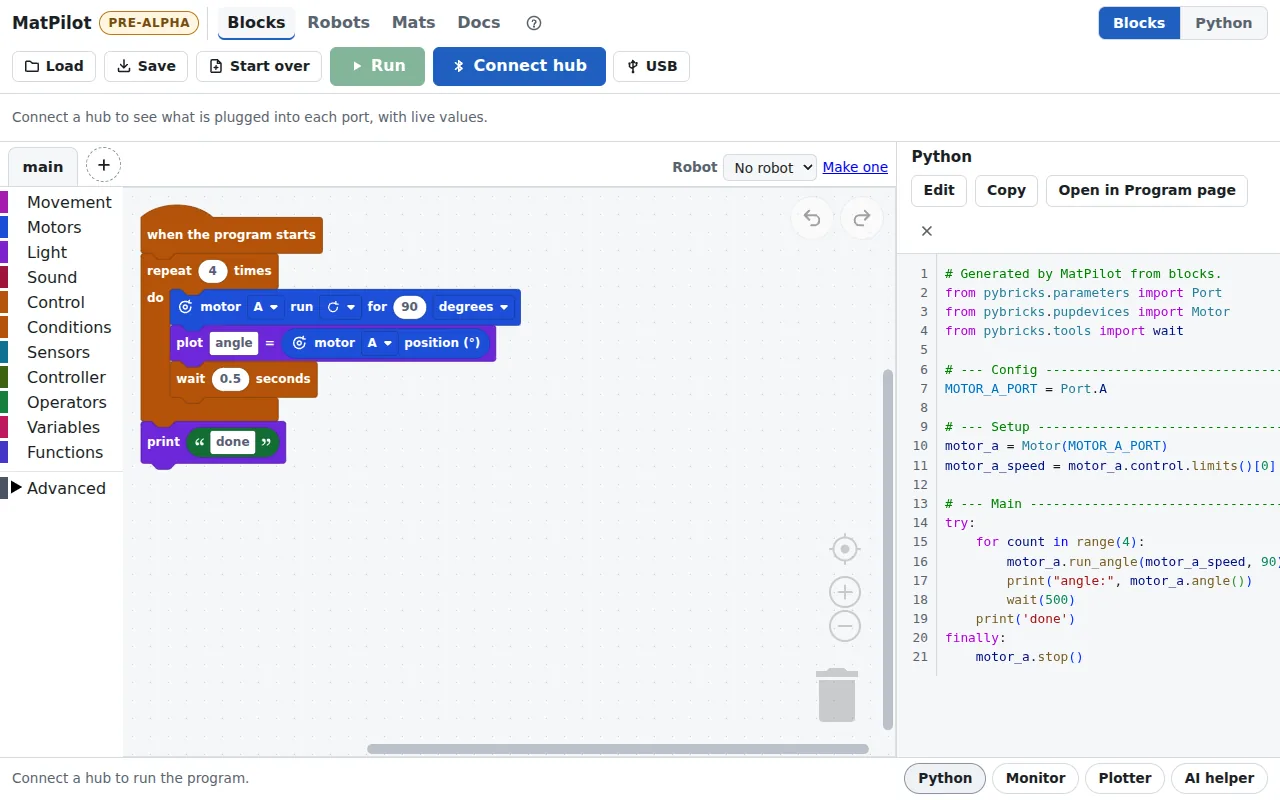
The Blocks page starts with a small program: motor A turns a quarter turn, four times. Plug a motor into port A and press Run. Press Stop to end it early: every motor stops with it.
Now change it. Tap the A on the motor block to choose another port, or drag in blocks from the categories on the left. The Blocks page of the Docs shows each part.
If the hub is not in the list
- Is the hub on, and is Pybricks on it? A hub with the LEGO® app’s firmware is not listed.
- Is it connected to something else, such as Pybricks Code in another tab? Disconnect it there first.
- Is Bluetooth on, on the computer?
- The home page checks this computer and your hub: Check this computer and your hub.